Showing posts with label Downloads. Show all posts
Download Cut The rope : Time Travel For Android
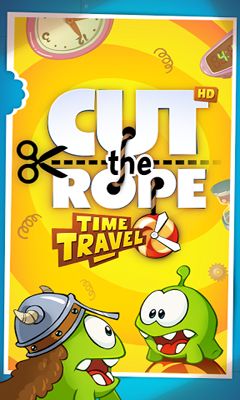 Cut the rope Time Travel merupakan seri ke-3 dari pengembang Zeptolab setelah "Cut The Rope", "Cut The Rope: Experiments".
Gameplay
Kali ini Om Nom(si karakter game) tersedot oleh mesin waktu sehingga ia kembali ke
masa lampau dan bertemu dengan para leluhurnya (mungkin) dan ini menyebabkan
kamu harus memberi makan 2 Om Nom dalam setiap levelnya. Jika salah satu tidak
mendapatkan permennya maka level tersebut tidak akan selesai.
Salah satu yang paling terasa berbeda dari seri sebelumnya
adalah kali ini kamu akan lebih banyak bermain dengan yang namanya ketepatan.
Jika sebelumnya kebanyakan kamu hanya perlu memotong tali yang benar maka kali
ini elemen waktu lebih banyak terpakai dari seri sebelumnya.
Terdapat dua fitur utama yang saya pikir
cukup penting, yang pertama adalah fitur time freeze dimana kamu dapat
memberhentikan waktu dan yang kedua adalah tali baru yang berupa rantai dimana
rantai ini tidak dapat dipotong dengan swipe jari melainkan dengan gerigi
pemotong yang disediakan dalam game ini. Kedua fitur baru ini membuat
gameplaynya menjadi lebih berbeda dan lebih mendalam dari versi sebelumnya.

Contohnya terkadang kamu harus membiarkan permen berayun ke
arah duri, dan pada saat-saat terakhir kamu menekan tombol freeze lalu memotong
talinya, begitu tombol freeze ditekan kembali maka permen akan jatuh tepat ke
bawah Om Nom dan tidak menabrak duri. Selain dua fitur ini masih banyak juga
fitur-fitur lainnya seperti bom yang dapat meledak ketika bersentuhan dengan
benda lain;
Cut The Rope: Time Travel mempunyai 6 dunia dengan 15 level
di setiap worldnya sehingga secara total kamu akan mendapat 90 level. Sebuah
jumlah yang sebenarnya terbilang lumayan banyak.
Untuk Android dapat download gratis DISINI via Google Play
dan untuk HD bisa Download gratis DISINI
Tag :
Android Game,
Downloads
Start Menu Reviver for Windows

Just Share All!!!
Microsoft’s decision to drop the Start menu in Windows 8 has caused plenty of controversy, but fortunately it’s made little difference to the end user. Developers quickly realized that many people really don’t like the new interface at all, and they’ve produced a host of free tools to help make Windows 8 look and feel as much like Windows 7 as possible.
Start Menu Reviver, though, has a different aim. Instead of ignoring Microsoft’s Modern UI, it adapts it, with configurable tiles rather than text links. There’s good integration with Windows 8, including the ability to launch Start Screen apps from your desktop. But at the same time, it’s not tied to Windows 8 systems: if you like the look, you can install and run the program on Windows 7, too.
Just as you’d expect, Start Menu Reviver pops up whenever you click the Start orb or press the Windows key. (It’s not made any drastic low-level changes to achieve this, though, so if you have any problems with the program then it can easily be dismissed: just right-click the Start orb and select Exit.)
The opening menu looks good, and works well. Left-hand buttons give you one-click access to common destinations: the Search window, Run box, Recent Documents list, Network and Sharing Centre and more.
Right-hand tiles initially give you access to various folders (My Computer, Documents, Pictures, Music, Videos), applications and system areas (Control Panel, Task Manager), as well as switching you to the Start Screen in Windows 8 (you can launch Windows 8 apps from the menu, too).
Elsewhere, a Search box helps you find what you need, and a Power button displays all the usual options: Log Off, Switch User, Lock, Sleep, Hibernate, Restart, Shutdown.
You’ll also want to customize these tiles, of course, and there are multiple ways to do this. Move the mouse cursor to the right of the menu, for instance, and a view of your Program Files folder appears; find an executable, drag and drop it onto a tile and it’ll be added immediately.
Alternatively, right-clicking any of the right-hand tiles provides an option to customize it with a shortcut of your own. This can point to a program, document or website, and can optionally be set to run as an Administrator, if necessary. And if there’s not enough space, the larger tiles can optionally be used to hold four individual shortcuts, giving you up to 32 in total.
There are some annoyances here. If you type the name of a program in the regular Start Menu search, for instance, you can immediately use the up and down cursor keys and press Enter to select and launch whatever you need. With Start Menu Reviver, though, the keyboard focus remains on the Search box, so you can’t do any of this. To select and launch a program you must double-click it with the mouse (or tap it on a touch screen).
Start Menu Reviver also isn’t quite as configurable as we’d like (the left-hand buttons appear to be fixed). It uses a notable amount of RAM (50MB or so on our test PC), and requires a "helper" service to be installed.
The program looks great, is free (for personal use) and has plenty of features, though, so if you need a Start Menu alternative then it’s well worth considering.
DOWNLOAD Start Menu Reviver
Tested Work in Windows 7


